
The Fastest Scan-to-CRM Workflow
The most dangerous place for a new lead to live is in your pocket.
We all know the drill: You return from a conference with 50+ business cards. You know they need to be in your CRM (Salesforce, HubSpot, Pipedrive) to start the follow-up sequence. But the thought of spending your entire Monday morning manually typing names and emails is enough to make you procrastinate.
The result is "Lead Decay." The longer those cards sit on your desk, the colder the relationship gets.
The good news is that you don't need a complex API integration to solve this. You just need a Batch CSV Workflow. Here is the fastest, error-free way to move physical cards into your CRM in minutes, not hours.
The Old Way vs. The New Way
| Feature | The "Typist" Method (Slow) | The "Batch" Method (Fast) |
|---|---|---|
| Process | Manual entry per contact | AI Batch Scan & CSV Import |
| Data Quality | High risk of manual typos | Accurate AI Extraction |
| Effort | High (Repetitive typing) | Low (Rapid photography) |
| Time Cost | ~5+ hours for 50 cards | ~15 minutes for 50 cards |
Step 1: Rapid Capture (The CardSync Phase)
The first step is digitizing the physical paper. You don't need to organize them yet; you just need to get them into the cloud.
Using CardSync:
Snap: Take photos of your cards in rapid succession. The AI extracts the text immediately.
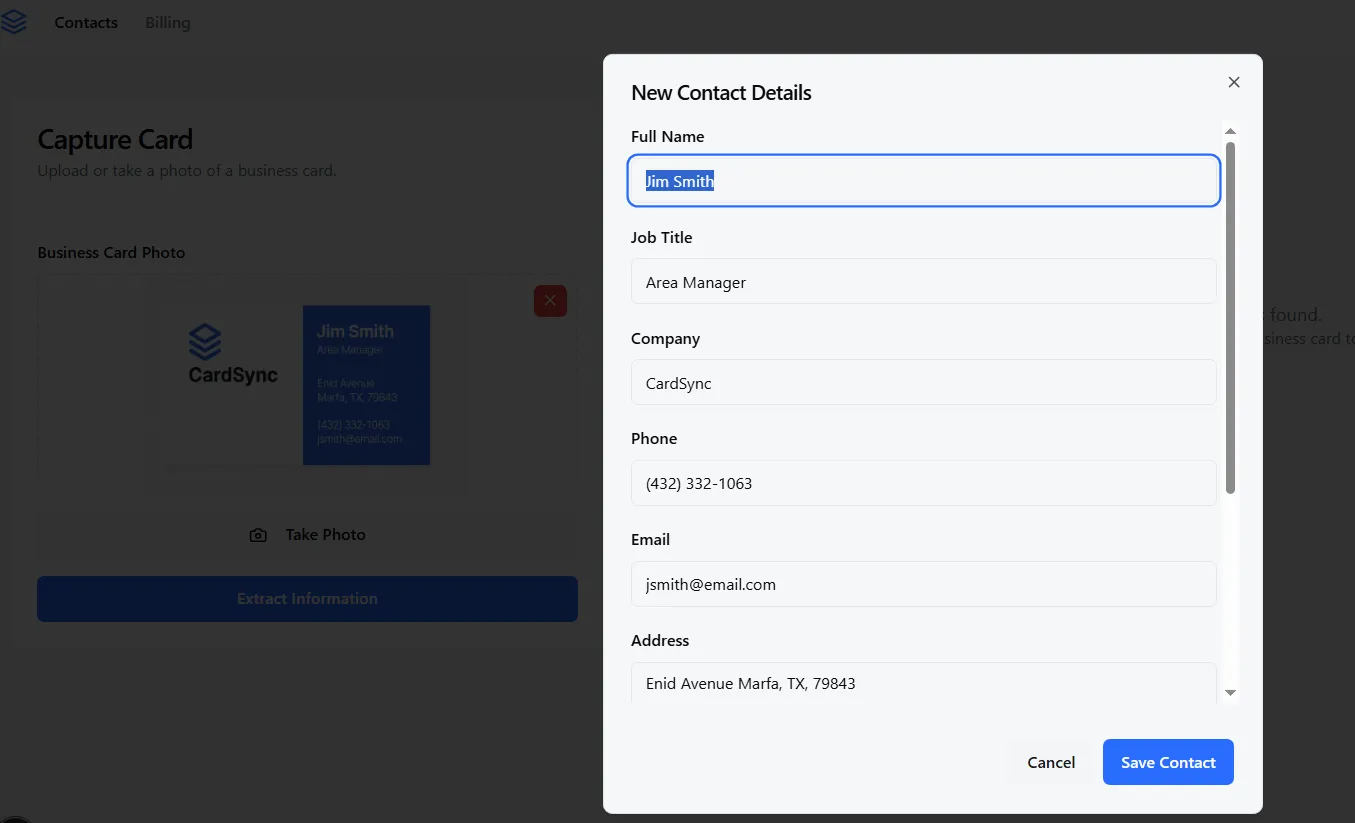
Context: (Optional) Add a quick Voice Note to the card while scanning (e.g., "Met at the coffee bar, interested in the Enterprise plan"). This is faster than typing notes.

Review: Give the list a quick glance to ensure the AI captured everything correctly.
Pro Tip: Do this at the event. Scanning 5 cards per hour at the booth is painless. Scanning 50 cards at the hotel is a chore.
Step 2: The One-Click Export
Once your cards are digitized, you don't want to move them one by one. You want to move them in bulk. In CardSync, simply select your contacts and click Export to CSV (or Excel).
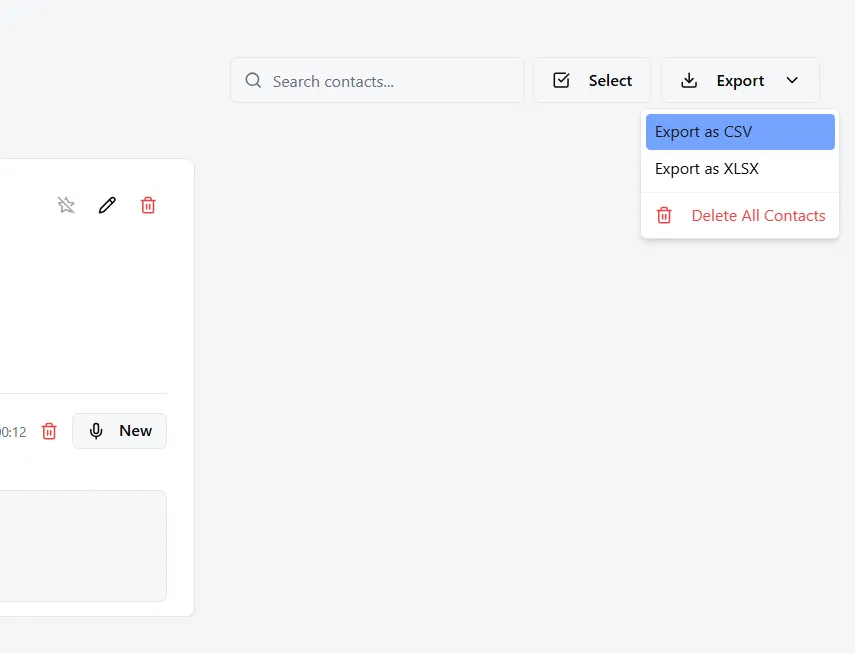
This gives you a clean, structured spreadsheet with columns for First Name, Last Name, Email, Phone, Company, and your Notes.
Why the "CSV Step" is actually a good thing:
Direct integrations are great, but they can be dangerous. They often pump messy data straight into your clean CRM. By exporting to CSV first, you get a "staging area" where you can delete low-quality leads or fix typos before they pollute your main database.
Step 3: Import to Your CRM
Every major CRM is built to ingest CSV files easily. Here is exactly where to find the import tool for the big players:
How to Import Business Cards to Salesforce
- 1.Log in to Salesforce.
- 2.Go to the Data Import Wizard.
- 3.Click Launch Wizard -> Accounts and Contacts.
- 4.Select Add New Records and upload your CardSync CSV file.
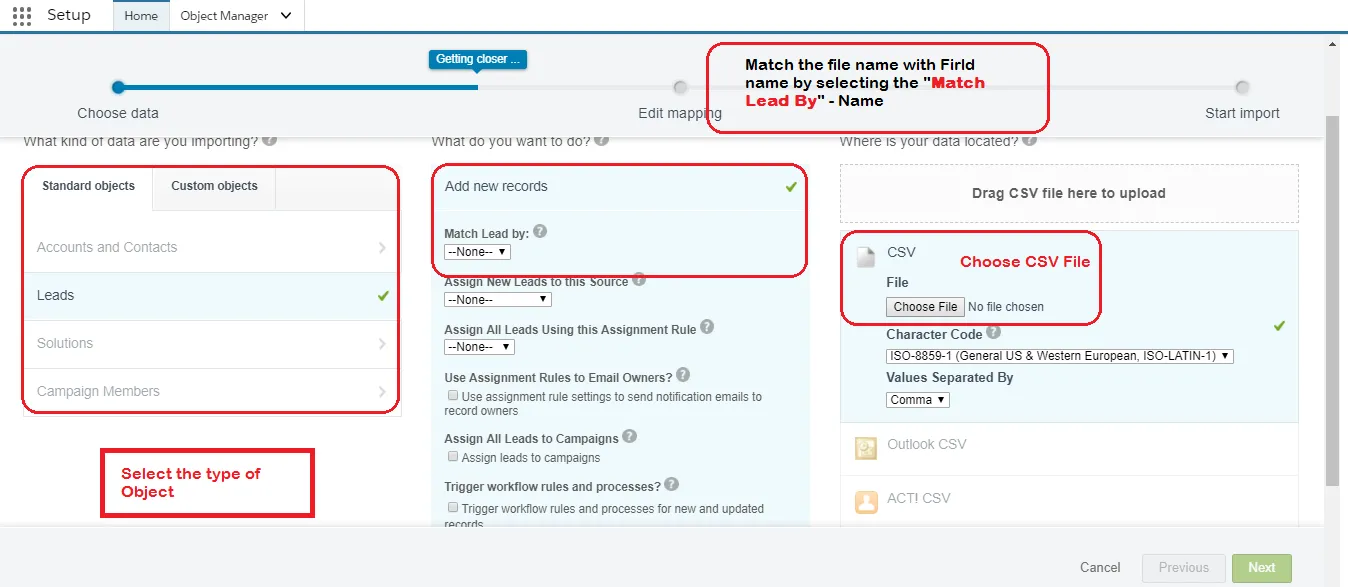
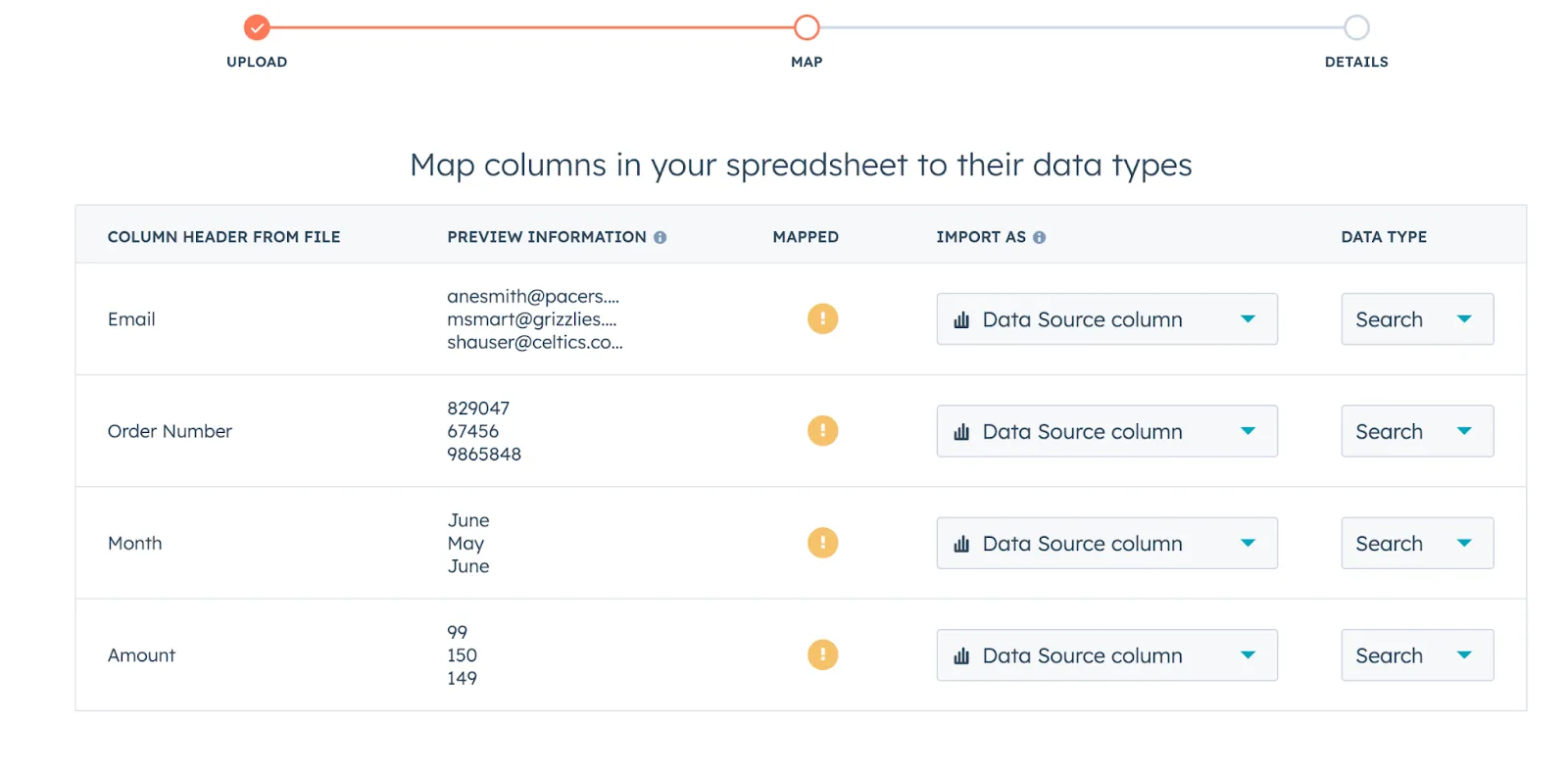
- 5.Map the fields (Name to Name, Email to Email) and click Start Import.

How to Import Business Cards to HubSpot
- 1.Navigate to Contacts.
- 2.In the top right, click Import.
- 3.Select Start an Import -> File from Computer.
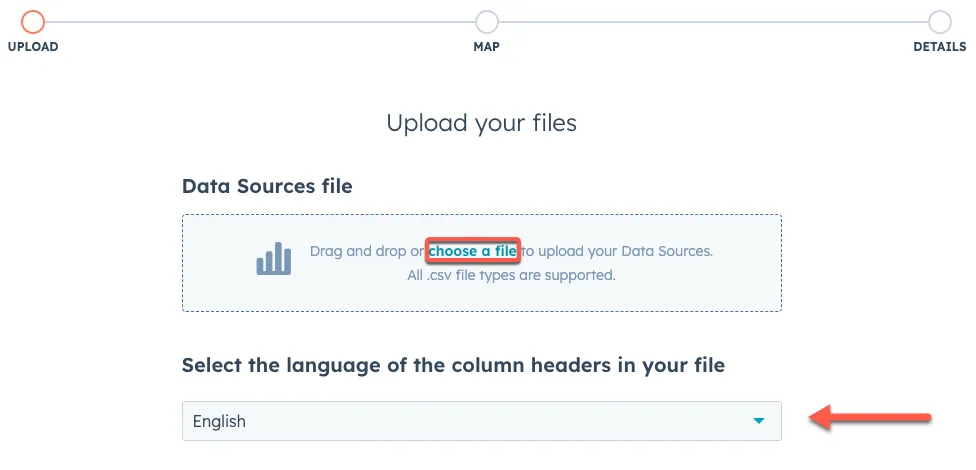
- 4.Upload your CSV.
- 5.HubSpot will automatically map the columns. Click Finish Import.
How to Import Business Cards to Pipedrive
- 1.Go to Tools and Apps -> Import Data.
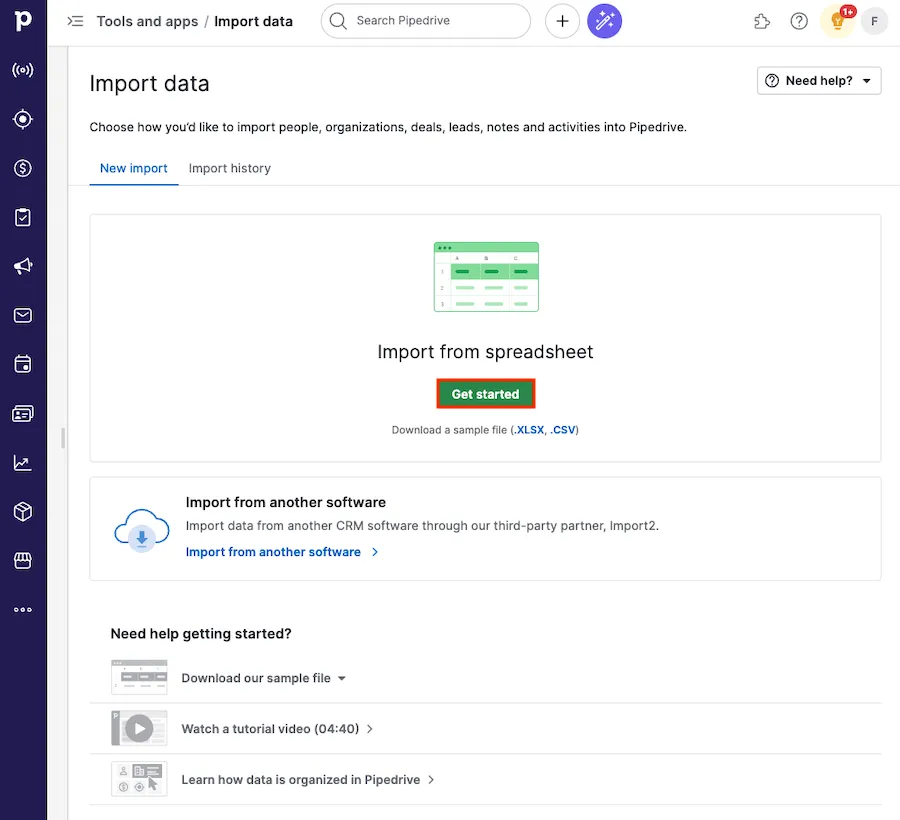
- 2.Click Get Started.
- 3.Upload your CSV.
- 4.Drag and drop the Pipedrive fields to match your spreadsheet columns.

- 5.Click Start Import.

Summary
You are paying your sales team to sell, not to do data entry. By switching to a Scan -> CSV -> Import workflow, you eliminate the bottleneck between meeting a prospect and starting the conversation.
Try CardSync. (First 10 scans are for free)

