
5 Free Ways to Scan Business Cards (That You Already Have)
You probably already have a powerful scanner sitting on your phone right now - you just don't know it.
Apps like Google Lens, Notes, and even your camera roll can technically "read" a business card. For many people, these built-in tools are the first place they look. But the real question isn't "Can I scan it?" - it's "Where does the data go?"
While built-in tools are great for saving a single phone number on the fly, they often leave you with a messy contact list rather than an organized database.
Here are 5 free ways to digitize business cards using tools you already have:
1. Google Lens (Best for Android Users)
If you have an Android phone (or the Google app on iPhone), you have one of the best OCR tools in your pocket.
- •How to use it: Open your camera, point it at the card, and tap the Lens icon. Tap the text on the card, and Google will identify it as a contact.
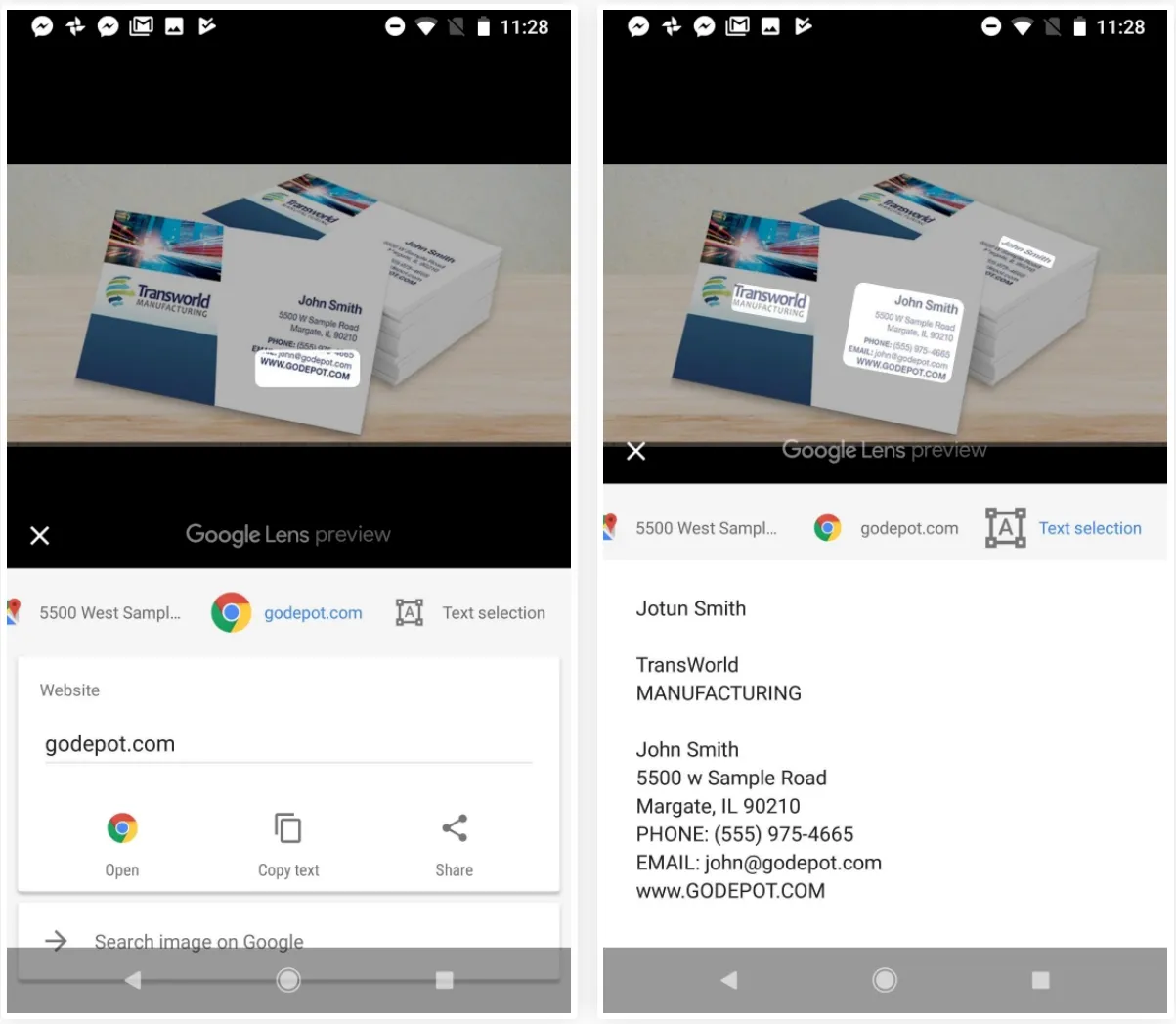
- •The Good: It’s instant and free.
- •The Bad: It creates a phone contact, not a database entry. You can’t export a list to Excel easily.
- •Verdict: Perfect for saving one person to your phone contacts on the fly.
2. Evernote Scannable (Best for Note Takers)
The popular notebook app has a dedicated companion app called Scannable.
- •How to use it: Scan the card, and Evernote automatically recognizes it as a "Business Card" note type. It extracts the info and can pull a photo from LinkedIn if the email matches.
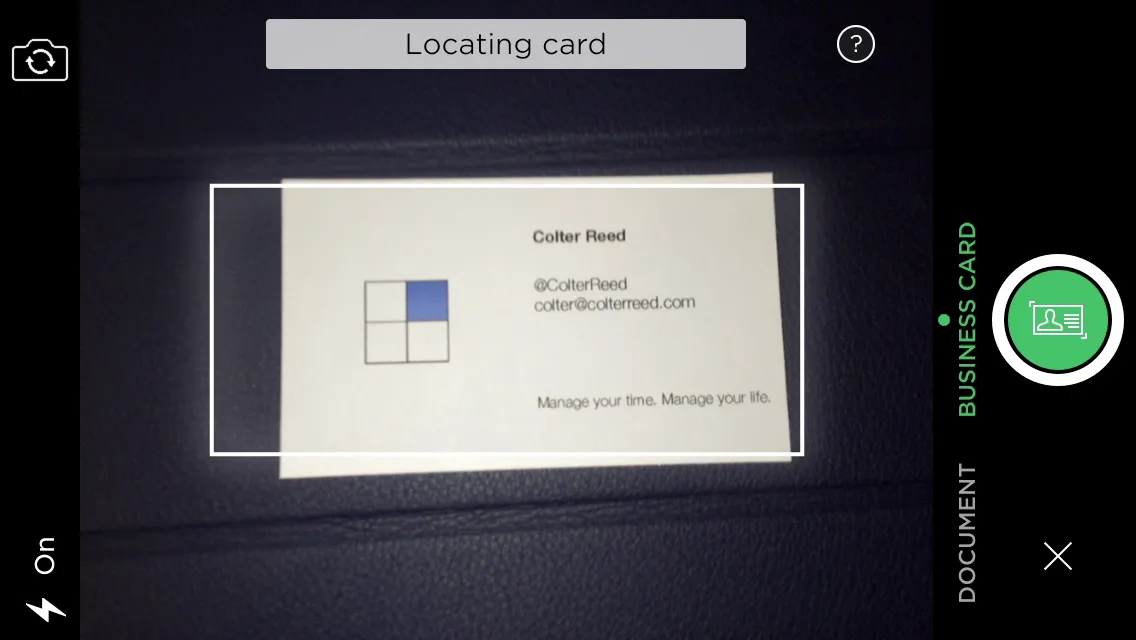
- •The Good: Great integration if you already live inside the Evernote ecosystem.
- •The Bad: Your data is trapped in Evernote. Getting 50 contacts out of Evernote and into a sales CRM is a manual copy-paste nightmare.
- •Verdict: Good for personal networking, bad for sales teams.
3. Microsoft OneNote / Office Lens (Best for Office 365 Users)
If your company runs on Microsoft, you have Office Lens.
- •How to use it: Use Office Lens to snap a picture and save it to OneNote. On your desktop, you can right-click the image and select "Copy Text from Picture" to paste the info elsewhere.

- •The Good: Free and secure within your company intranet.
- •The Bad: It’s a multi-step process. Snap -> Save -> Open Desktop -> Copy Text -> Paste. It’s too slow for a trade show floor.
- •Verdict: Great for archiving cards you might need "someday."
4. Google Drive (The "Hidden" OCR Trick)
Did you know Google Drive can convert images to text?
- •How to use it: Upload a photo of a business card to Google Drive. Right-click the file and choose
Open with>Google Docs. Google will put the image at the top and the editable text at the bottom.


- •The Good: Incredibly accurate text recognition.
- •The Bad: It’s clunky. You end up with a folder full of Google Docs, not a spreadsheet of contacts.
- •Verdict: Useful for a one-off digitization if you don't have your phone.
5. Apple Notes (Best for iPhone Purists)
The default Notes app on iOS has a built-in document scanner.
- •How to use it: Open a new Note, tap the Camera icon, and select "Scan Text." Point it at the business card, and it will drop the text directly into the note.
- •The Good: Native to iOS, no download needed.
- •The Bad: It treats the text as... just text. It doesn't know that "Steve" is a First Name and "steve@gmail.com" is an email. It’s just a block of words.
- •Verdict: Good for quickly grabbing an email address.
The "Volume Problem" (When Free Isn't Free)
These free tools are fantastic for the Occasional Networker. But they all share one fatal flaw: They are slow.
Using Google Lens or OneNote requires about 10-15 clicks to scan, save, edit, and organize a single card. If you have 1 card, that takes several minutes. No problem. If you have 50 cards from a trade show, that takes half a day of tapping and scrolling, noting and then thinking, how to actually export them.
If you are an exhibitor, "Free" is costing you hours of your life.
Try upgrading to CardSync
You need a dedicated tool like CardSync when Speed and Excel Export become more important than saving $5. Unlike the apps above, CardSync is built for Volume and time saving:
- •Fast Processing: 1 card scanning takes about 6 seconds.
- •Voice Context: Don't just save the email; save the conversation with a voice note.
- •Excel/CSV Export: Move 100 contacts to your CRM in one click, not 100 clicks.
Summary: Which Tool is for You?
| Your Volume | Recommended Tool |
|---|---|
| 1-5 Cards / Month | Google Lens or Apple Notes (Free) |
| Note-Takers | Evernote Scannable (Free/Freemium) |
| Exhibitors | CardSync (Speed & Excel Export) |

