
How to Digitize Business Cards to Excel (No Typing)
If you have a stack of business cards sitting on your desk, you technically have a database of leads. But right now, that database is useless.
Until those cards are digitized, they are just paper. They can’t be searched, they can’t be emailed, and they can’t be backed up. The traditional way to "digitize" them is to spend hours manually typing names and numbers into a spreadsheet. But in 2025, that is a waste of time.
Here is the step-by-step guide on how to use AI to digitize business cards directly to Excel or CSV in seconds—with zero typing required.
Why Digitize to CSV/Excel?
Before we look at the how, here is the why. Converting cards to a CSV (Comma Separated Values) file is the smartest way to manage contacts because it acts as a "Universal Key."
Once your cards are in a CSV/Excel format, you can:
- •Import to any CRM (Salesforce, HubSpot, Pipedrive).
- •Upload to Email Marketing tools (Mailchimp, Klaviyo).
- •Sync with Personal Contacts (Google Contacts, Outlook, iCloud).
- •Share with your team via Slack or Teams.
The Tool: CardSync (No App Download Needed)
For this tutorial, we will use CardSync.
Unlike legacy scanners that require mobile app downloads, CardSync is a web-based app. This means you can open it right now in your mobile browser (Chrome/Safari) and start scanning immediately without cluttering your phone storage.
Step 1: Open the Web Scanner
Go to CardSync on your phone’s browser.
Tip: You can try the first 10 scans for free to see how the AI works.
Step 2: Snap the Photo
Click the "Take Photo" button. Point your camera at the business card. Ensure there is decent lighting and the text is in focus.


In less then 5 seconds AI identifies the patterns of a name, an email address, a phone number, and a job title, separating them into the correct fields automatically.

Step 3: Add "Context" (The Secret Sauce)
Most people forget this step. A name and email are useless if you don't remember why you met them. Before saving, use the Note feature:
- •Text Note: Type "Interested into our Pro plan."
- •Voice Note: (Recommended) Tap the microphone icon and record: "John is looking for a supplier for Q3. Send him the pricing PDF on Monday."

Step 4: Save & Repeat
Click Save. The contact is now safe in your cloud database. Repeat this process for your entire stack. The AI takes about 5 seconds per card, so you can clear a stack of 50 cards in under 14 minutes.
Step 5: The One-Click Export
Once your pile is gone, in your Dashboard.
- 1.Click Export.
- 2.Choose Excel (.XLSX) for a formatted sheet or CSV for imports.

The Result
You now have a clean, organized spreadsheet:
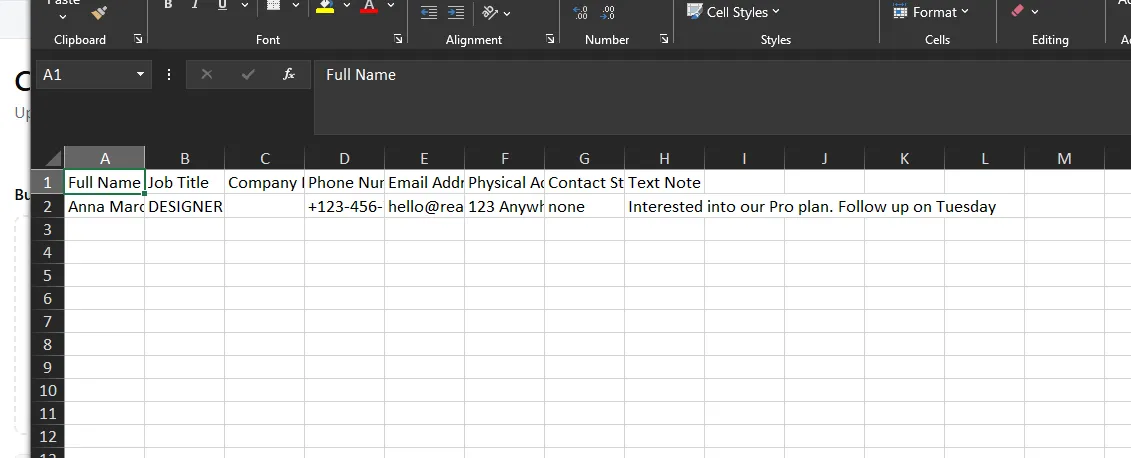
You have successfully turned a physical pile of paper into a digital asset—without typing a single character.

